When learning about interaction, the simplest example is probably a button.
So in this session, we'll build an example where clicking a button displays a penguin image.
The examples are organized by difficulty:
Loading an image file from within the project
Loading an image from the internet
Loading an image from the internet with automatic caching
We'll learn through these three approaches.
1. Loading an Image File From Within the Project

First, let's create a new Flutter project.
mandarange.fun http://mandarange.fun/221834470035
Flutter - 02. Creating a Project and Running the Emulator
If you don't remember how to create a project, refer to the previous session post above.

Now let's look at the main.dart file that Flutter generates by default. It's complex, so we'll delete the bulk of it.

Since we need to use Material Design, let's import it.

Write the main function and create a StatelessWidget called PengsooApp().

Now create the actual StatelessWidget class with that name.
(We used a StatelessWidget because we're just drawing a simple background without any interaction.)

Here we have a Container widget, which is a layout type that sets positioning.
For now, just think of it as a tool for creating frames of the desired size — we'll cover this properly next time since we're focusing on feature implementation for fun right now.
Since we won't be using it, let's delete it.

Since we'll be using Android's Material Design, let's create a MaterialApp widget there.
Set the title appropriately, and to see what else you can input, press Ctrl + Space to review the list. Then add home, which is where the main content goes.

Since we don't have a background, let's create a Scaffold widget to draw one.

Now that we have a background, let's add an AppBar to make it look presentable and put some text in the appBar variable.

If you type text directly into appBar, you'll get an error.

So I Ctrl-clicked on the appBar section to check the definition and see the data type — it's not a String but a Widget (class).
So we need to create an AppBar widget and pass it in.

Created the AppBar and

I typed text directly into the title variable but got an error.

Checked the data type again and confirmed it's a Widget, so text must be provided in widget form.

Providing text in widget form works.

By the way, there's an easier method than opening the class directly — hold Ctrl and hover your mouse over it, and you'll see the type information appear after a moment. Use whichever method you prefer.

The app background looks good, but the AppBar color is too bland.
Let's change the AppBar color to yellow — matching Pengsoo's headphone color.

Changed it, but now the text is hard to read.
Let's change the text color to black.

There's a variable in the Text widget that lets you set the style.
The style variable is of type TextStyle.

And since the TextStyle class has a color property, you can change the color through the Text widget.

So if you write it like this

the text renders in black properly.
Let's also make it bold.

But there's no Bold option in fontStyle.
In cases like this, let's Google it.

Searching "bold font" in the official Flutter docs reveals it's inside a class called FontWeight.

Writing it as shown renders the text bold as desired.
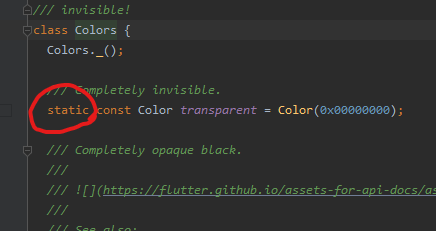
By the way, you might be wondering why we didn't use the new keyword before classes like Colors or FontWeight.
That's because they're static variables — they always exist in memory and don't need to be instantiated.
Of course, if you try using the new keyword, Android Studio will throw an error, so no need to worry about it.
And just to reiterate — in Dart, the new keyword isn't required, but I personally prefer using it since it makes it easier to distinguish between functions and classes.
This post is getting too long, so I'll continue in the next one...